

X-Api-Key header in the request. Here’s an example of how to include the API key in your request:
Structure of an API key


Types of API key
There are two types of API key:- Production keys used for live transactions. These keys are prefixed with
wg. - Playground keys used for testing in the playground environment. These keys are prefixed with
XX.
Single or multiple keys
You can have multiple keys for different environments or applications. You should create new key for each use case. This allows you to revoke a key without affecting other integrations. If a key is shared revoking it will affect all users of that key.Scopes
Each production API key has a set of scopes, chosen when you create the key. A scope allows the key to call a group of endpoints. A request to an endpoint whose scope the key doesn’t have is rejected with a403 forbidden error. Playground keys don’t have scopes and can call every endpoint.
The scope each endpoint requires is also shown on its page in the API reference.
You can see the scopes of each key on the API keys page. API keys created before scopes were introduced have every scope, so they keep working as before.
Choosing scopes
We recommend following the principle of least privilege and giving each key only the scopes it needs. If a key is exposed, it can then only be used for what those scopes allow. We also recommend creating a separate key for each use case, such as one key for placing orders and another for reporting, so that each key needs fewer scopes. A key’s scopes can’t be changed after it is created, so to change them create a new key with the scopes you need and revoke the old one.Expiration
You choose when an API key expires when you create it. An expired key can no longer be used, so a key that is lost or forgotten stops working on its own. Expiration applies to both production and playground keys.Expiry options
When you create a key you can choose:- 12 months (the default). The key expires 12 months from today’s date in UTC. For example, a key created on 29 October 2026 expires on 29 October 2027.
- No expiration. The key never expires. We recommend choosing an expiry, so you’ll see a warning if you choose this option.
When a key expires
Keys expire at 00:00 UTC on their expiry date. A key that expires on 29 October 2027 works until 23:59:59 UTC on 28 October 2027. Depending on your time zone, this may be the evening of the previous day. For example, 00:00 UTC is 20:00 EDT the previous day in New York. From that moment, every request made with the key is rejected with a403 forbidden error, the same as a revoked key. An expired key can’t be renewed, so replace it before it expires.
Checking a key’s status
The API keys page shows each key’s expiry date in UTC and how long is left:- Keys with 30 days or fewer left are highlighted, and a banner is shown when any key has 60 days or fewer left.
- Keys that never expire show No expiration.
- Expired keys show the status Expired.
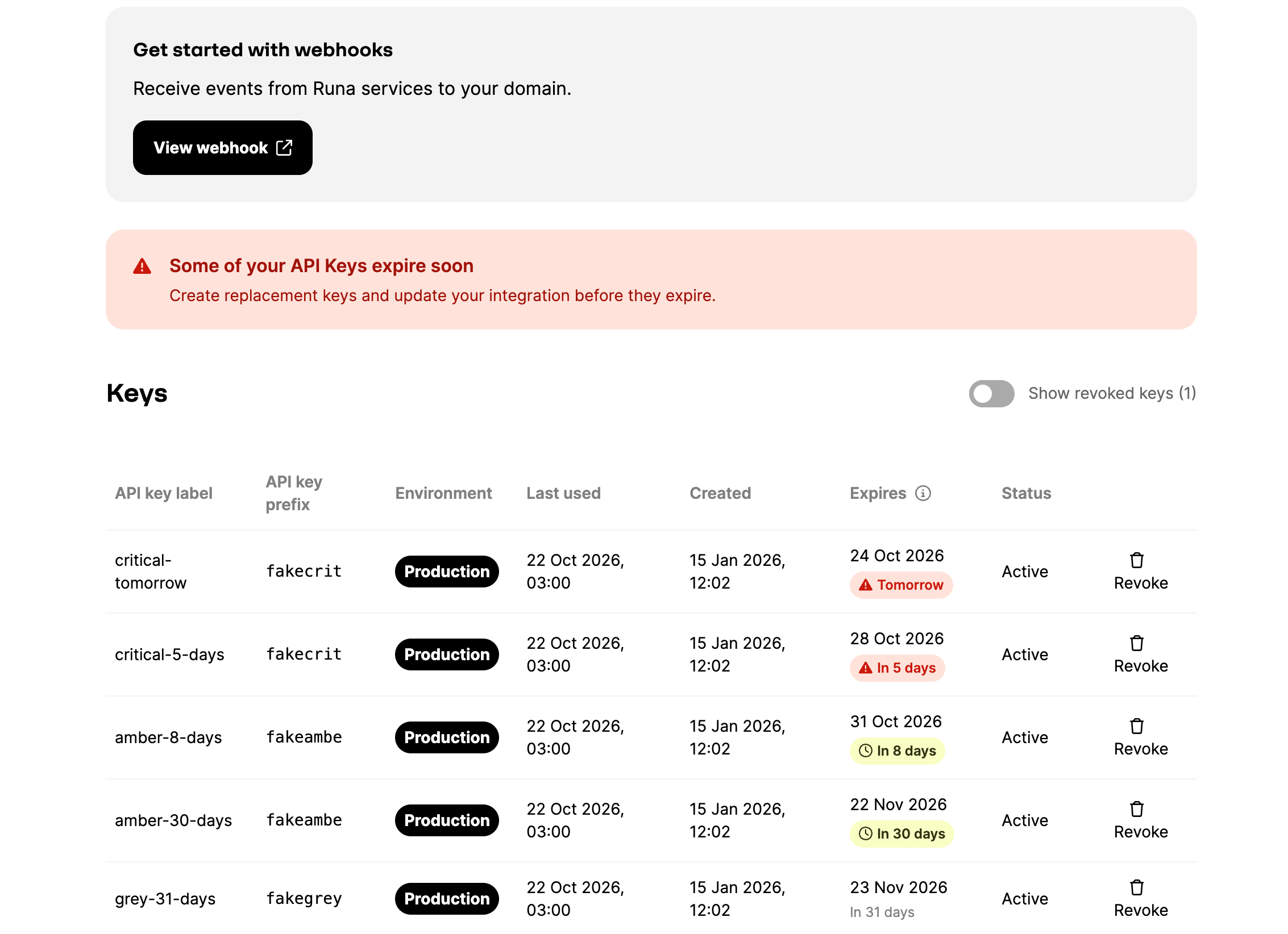
The API keys page shows when each key expires and highlights keys that expire soon.
Replacing a key
A key’s expiry can’t be changed after it is created. To keep your integration working, replace the key before it expires:- Create a new API key with the same scopes as the old key.
- Update your integration to use the new key, and check it works by calling the ping endpoint.
- Revoke the old key on the API keys page.