> ## Documentation Index
> Fetch the complete documentation index at: https://developer.runa.io/llms.txt
> Use this file to discover all available pages before exploring further.
# Creating an API key
> Create an API key to authenticate your requests
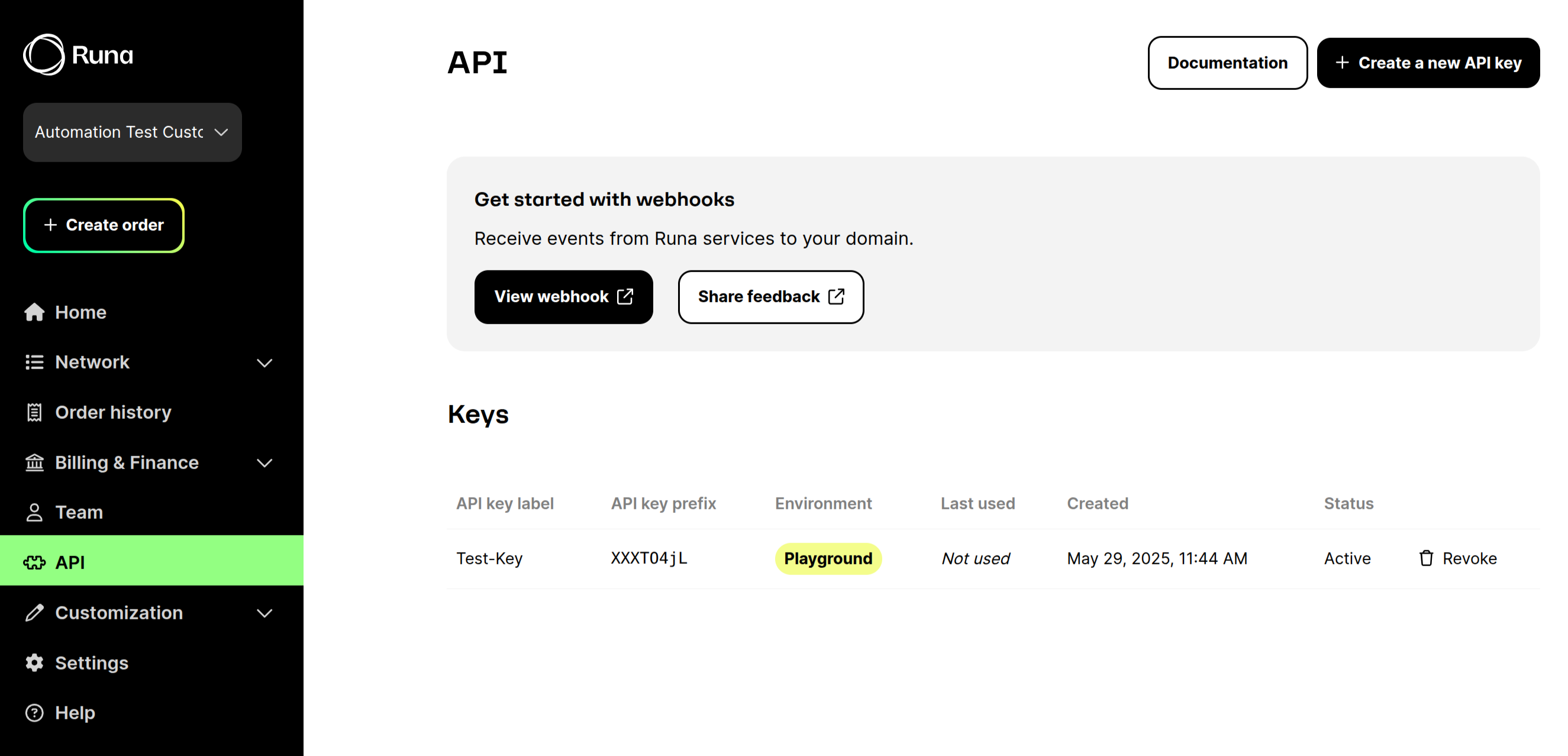
Navigate to the [API section](https://app.runa.io/api-keys) within your account dashboard. Click the "Create new API key" button to generate a new API key.
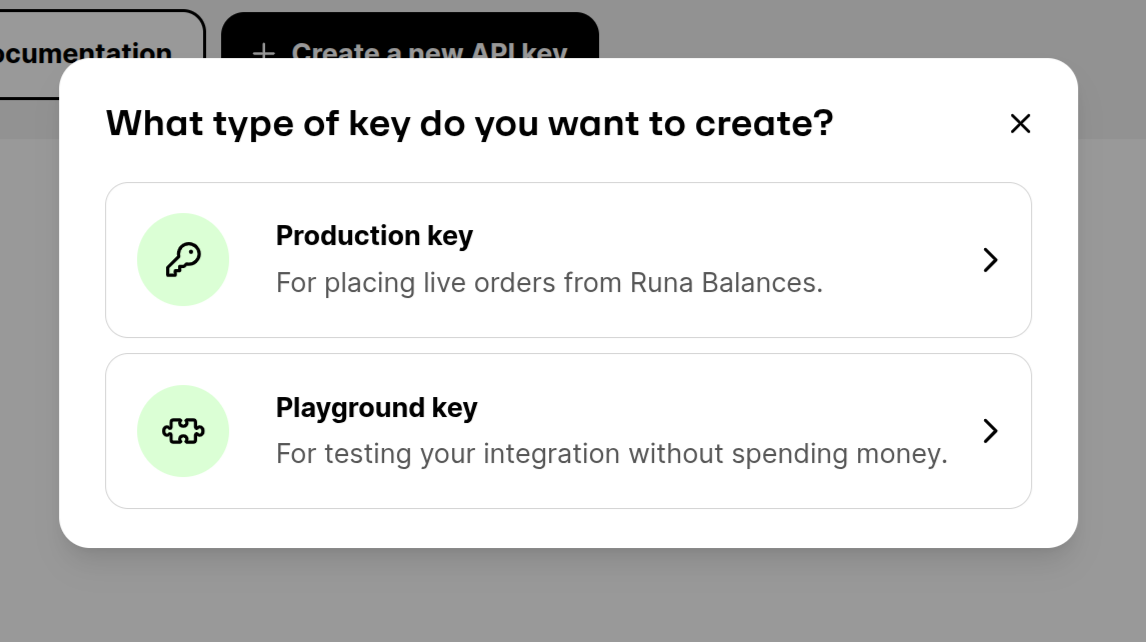
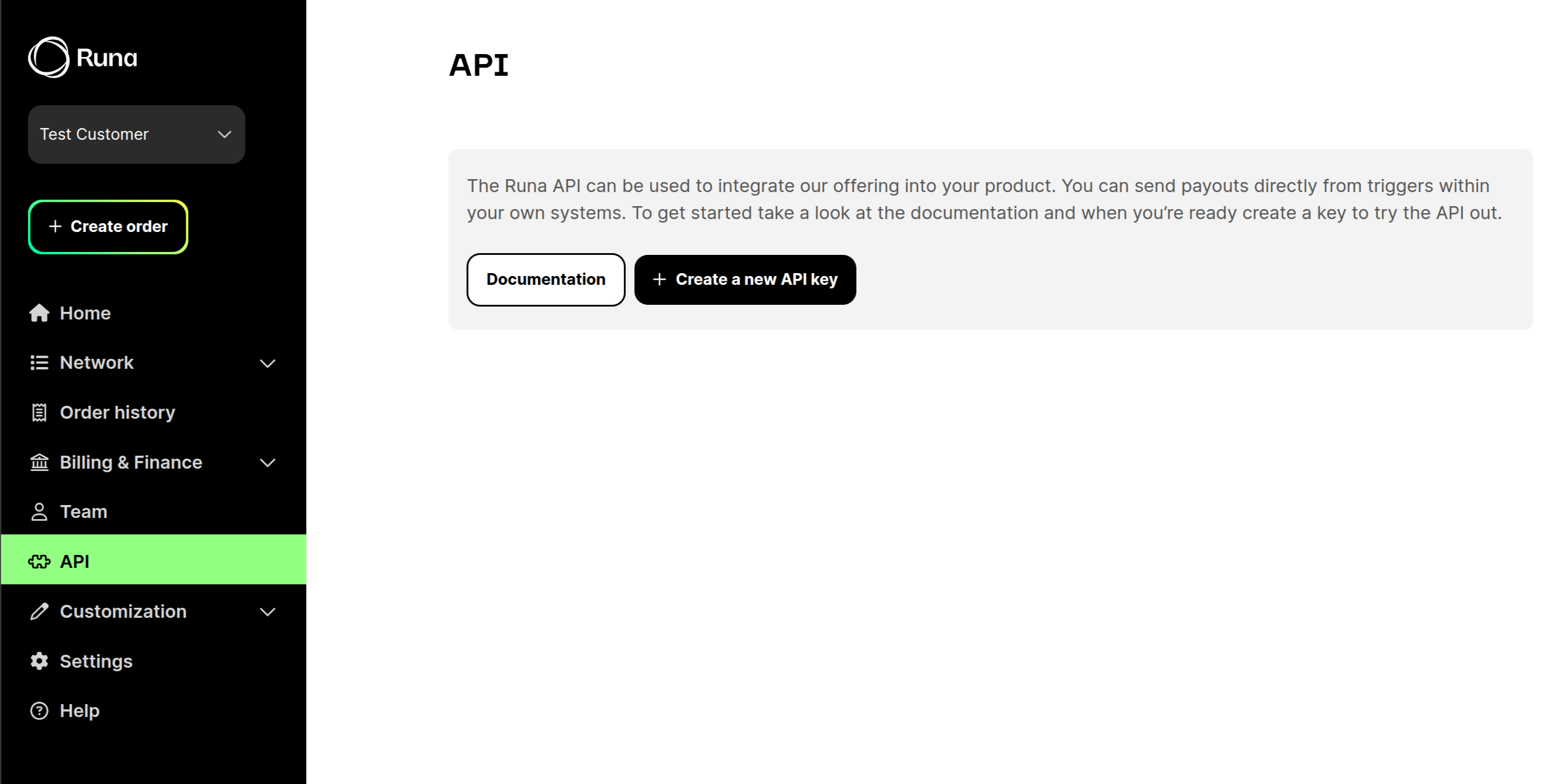 You now need to choose the environment to create the API key in. For this guide we will use the **playground** environment.
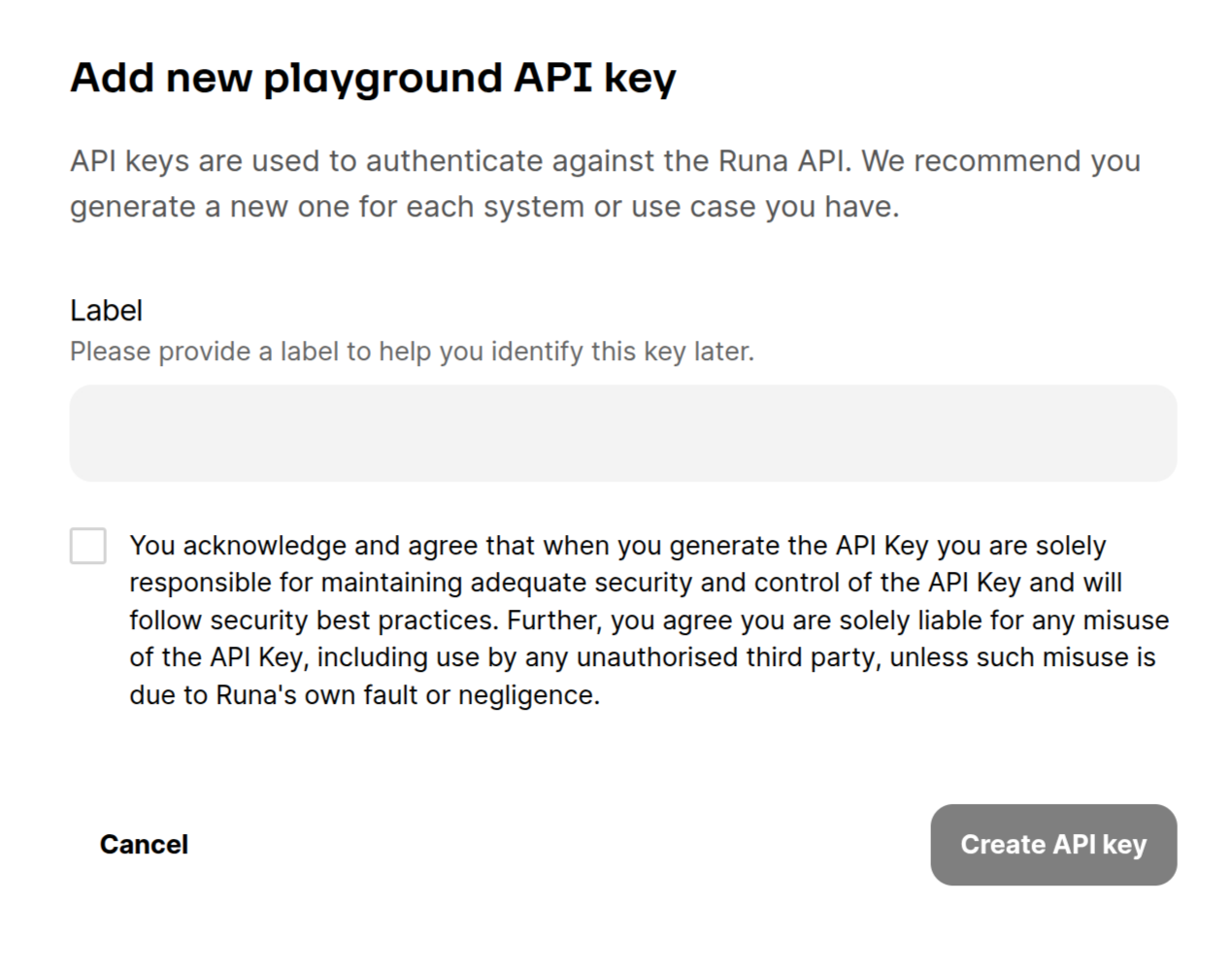
 You should give the API key a name that will help you identify it. This is helpful when managing multiple API keys. It's best practice to generate new keys for each use case and revoke them when they are no longer needed.
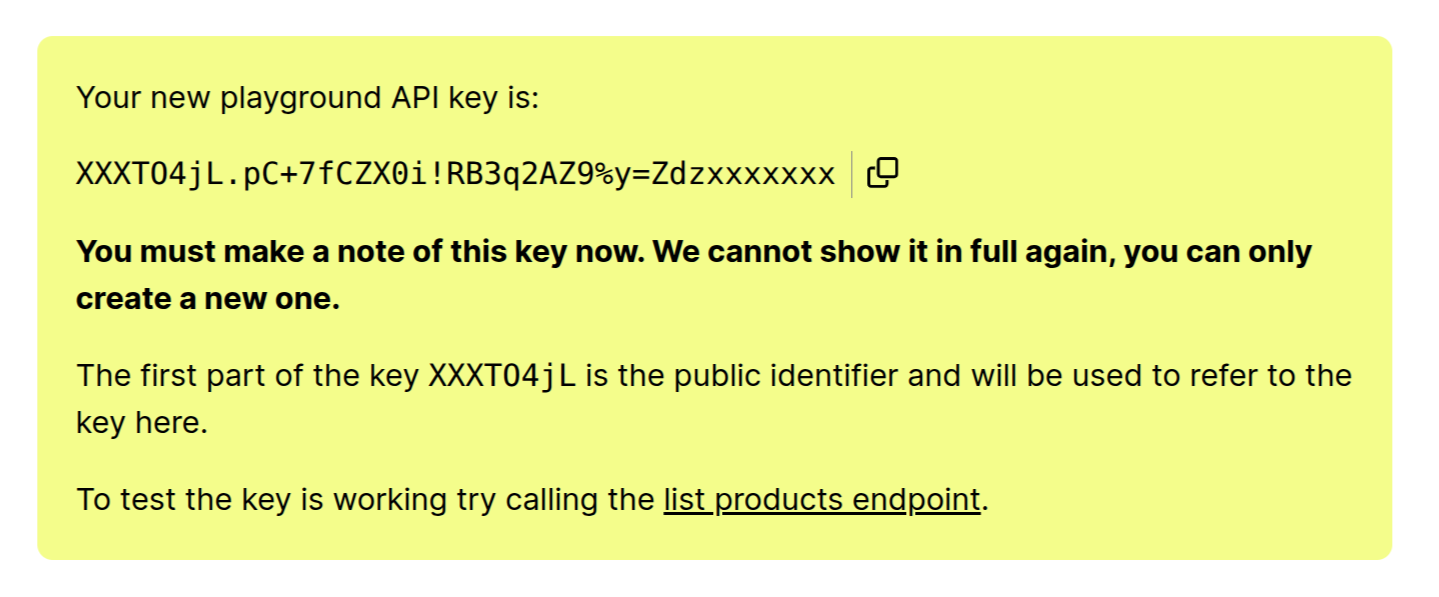
 After the key is created it will be displayed to you only once. You should copy the key and store it securely. If you loose the key you will need to revoke it and generate a new one.
 **Securing your API key**
It is your responsibility to keep your API keys safe and secure. Anyone holding your key will be able to make requests to the API on your behalf.
Review our [security best practices](/best-practices/security) for information on how to keep your API keys secure.
## The API keys page
Once you have created an API key you can view it on the [API keys page](https://app.runa.io/api-keys). You can also revoke any keys from this page. You can read more in the [authentication guide](/best-practices/authentication).
**Securing your API key**
It is your responsibility to keep your API keys safe and secure. Anyone holding your key will be able to make requests to the API on your behalf.
Review our [security best practices](/best-practices/security) for information on how to keep your API keys secure.
## The API keys page
Once you have created an API key you can view it on the [API keys page](https://app.runa.io/api-keys). You can also revoke any keys from this page. You can read more in the [authentication guide](/best-practices/authentication).
 ## Using your API key
### The API key header
When making requests to the API you will need to include the API key in the request headers. It must be included in the `X-Api-Key` header for all requests.
```http theme={null}
X-Api-Key: YOUR_API_KEY
```
### Testing your API key
You can verify that your API key is working correctly by making a request to the [ping endpoint](/reference/2024-02-05/endpoint/utility/ping). This is a simple health check endpoint that requires authentication but doesn't perform any other operations.
```bash theme={null}
curl -X GET https://playground.runa.io/v2/ping \
-H "X-Api-Key: YOUR_API_KEY"
```
If your API key is valid, you'll receive this response:
```json theme={null}
{
"message": "pong"
}
```
If you receive an error, check that:
* You've copied the entire API key correctly
* You're using the correct environment URL (playground or production)
* The API key hasn't been revoked
## Using your API key
### The API key header
When making requests to the API you will need to include the API key in the request headers. It must be included in the `X-Api-Key` header for all requests.
```http theme={null}
X-Api-Key: YOUR_API_KEY
```
### Testing your API key
You can verify that your API key is working correctly by making a request to the [ping endpoint](/reference/2024-02-05/endpoint/utility/ping). This is a simple health check endpoint that requires authentication but doesn't perform any other operations.
```bash theme={null}
curl -X GET https://playground.runa.io/v2/ping \
-H "X-Api-Key: YOUR_API_KEY"
```
If your API key is valid, you'll receive this response:
```json theme={null}
{
"message": "pong"
}
```
If you receive an error, check that:
* You've copied the entire API key correctly
* You're using the correct environment URL (playground or production)
* The API key hasn't been revoked
Now that you have your API key, let's put it to use by making your first
order. You'll learn about the different ordering modes available and choose
the one that best suits your needs.